Use Celigo CLI to build, manage, and version integrations from the terminal
 Updated Jul 28, 2026

Developers already work in the terminal, the IDE, and Git.
That is where you inspect code, run commands, automate repetitive tasks, compare changes, and troubleshoot issues. But integration work often pulls you back into a browser UI to find assets, inspect errors, move work between environments, or make updates.
Celigo CLI gives developers another way to work with Celigo.
With Celigo CLI, developers can work with Celigo from the command line, from AI coding assistants like Cursor or Claude Code, and from Git-based workflows where supported. It brings a headless iPaaS developer experience to integration work, giving technical users a way to build, inspect, manage, and move supported Celigo assets from the tools they already use.
Celigo CLI is built on Celigo’s REST APIs and exposes supported platform actions through a terminal-native interface. It can be scripted, automated, and used by AI-assisted development environments as an execution path for integration work.
Quick demo
Get started → Install the Celigo CLI via npm
Build integration assets from your IDE
When you are already working in an IDE, switching to a browser UI for every integration task slows you down.
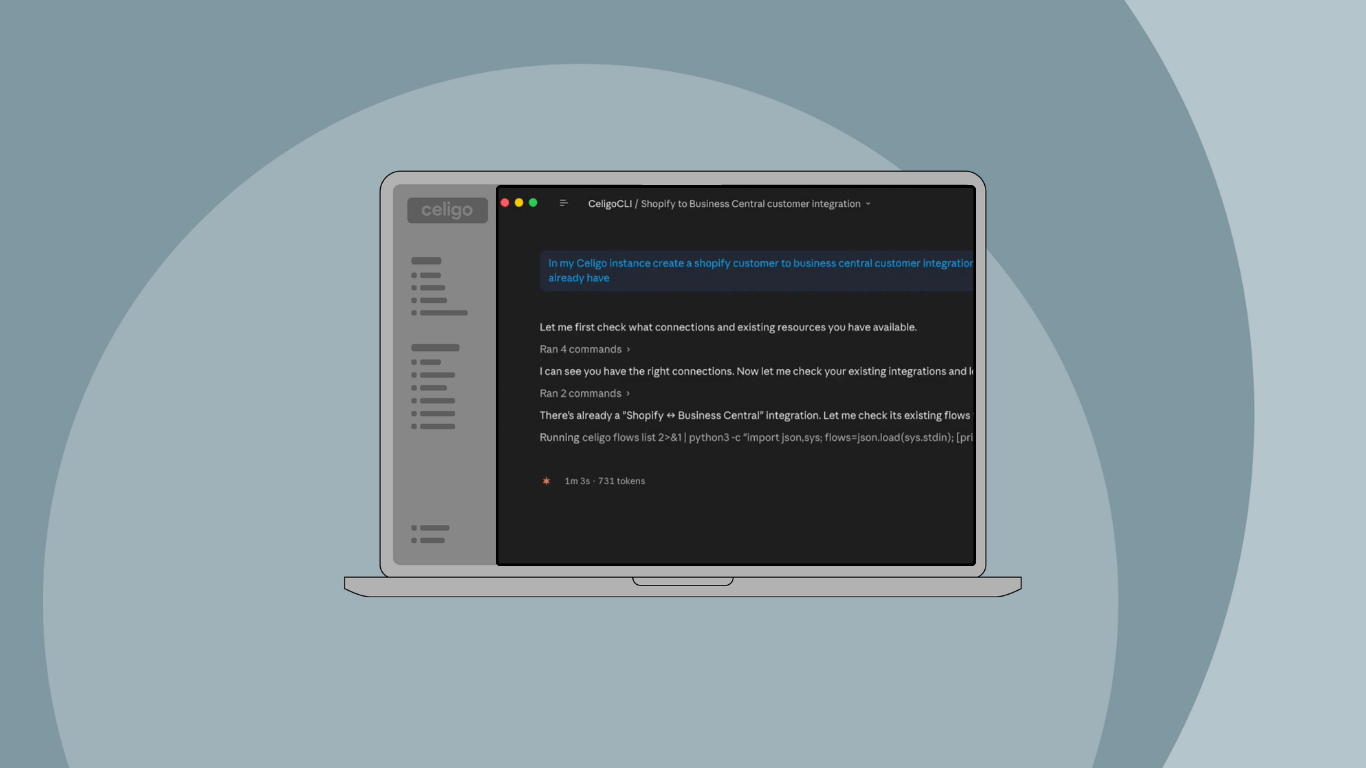
Celigo CLI gives developers a way to create supported Celigo assets in the same environment where they already work. Instead of manually building every asset in the browser UI, you can describe the task in natural language inside an AI-assisted development environment and let the AI coding assistant use Celigo CLI as the execution path.
Celigo CLI isn’t the only way AI clients reach Celigo programmatically. The Celigo Platform MCP exposes Celigo’s own platform as a set of MCP tools and resources, so MCP-compatible clients like Claude Code and Cursor can inspect and manage Celigo directly, without shelling out to CLI commands. CLI and Platform MCP are two entry points into the same headless developer experience: CLI for terminal-driven and scripted workflows, Platform MCP for clients that speak MCP natively.
For example, a developer can ask an AI coding assistant to create a lookup cache. The assistant can determine the needed CLI action, execute it against Celigo, and create the asset in the connected account.
The outcome is not just faster asset creation. The bigger shift is that integration development can happen closer to the developer workflow:
- Describe the task
- Let the AI coding assistant determine the action
- Execute through Celigo CLI
- Inspect the result
- Adjust, rerun, and validate
This supports a more natural developer experience for integration specialists who already work through prompts, commands, code review, and iteration.
Manage and monitor Celigo from the command line
Integration specialists and devs often need to inspect account resources, list integrations, check configuration, or surface operational information.
Celigo CLI makes those tasks accessible from the terminal.
Instead of navigating the UI for every lookup or inspection task, developers can run CLI commands directly, add them to scripts, or use them in repeatable workflows.
For example, a developer might use the CLI to list users or integrations from the command line. The command uses Celigo’s APIs under the hood, but the interaction happens through the terminal.
Common command-line use cases include:
- Inspecting account resources
- Listing integrations
- Checking configuration
- Surfacing operational information
- Automating repetitive administration tasks
- Supporting migration or environment management workflows
This is where CLI becomes part of integration lifecycle management. It gives technical teams another way to manage the work around integrations, not just the initial build.
Work across environments with CLI profiles
Developers and integration specialists often need to work across development, staging, production, customer sandboxes, or managed services accounts. That creates friction when every environment requires separate navigation, manual checks, and repeated steps.
Celigo CLI profiles make multi-environment work more practical.
Each profile carries its own access token, so you can configure separate profiles for different Celigo environments or accounts and switch between them from the terminal. This makes it easier to inspect multiple environments in the same session, compare resources across accounts, or move supported assets between environments.
For teams managing complex deployments, this changes how environment operations get done. Work that previously required switching accounts, navigating the UI, and repeating manual steps can become a command-driven workflow.
This is especially useful for:
- Development to production movement
- Customer sandbox management
- Multi-account deployments
- Migration projects
- Managed services workflows
- Environment inspection and validation
CLI gives advanced users a developer-oriented way to manage integration assets across environments.
Support Git and CI/CD-style lifecycle workflows
Many development teams want integration configuration to behave more like code.
That means they want to inspect changes, compare versions, maintain a clean repo structure, and eventually support CI/CD-style lifecycle management across environments.
Celigo CLI creates a foundation for that model by making supported Celigo actions accessible from the terminal. Where supported by the current CLI, teams can use export, comparison, backup, and versioning workflows to manage integration configuration through Git-based processes.
That can support workflows such as:
- Exporting supported integration assets
- Reviewing changes before promotion
- Comparing versions
- Maintaining environment-specific structures
- Supporting repeatable promotion or migration processes
- Building toward CI/CD-style integration lifecycle management
CLI provides a scriptable foundation for Git-based and CI/CD-style workflows. Specific export, redaction, diff, and pipeline steps should be confirmed against the current CLI documentation before publishing as final claims.
How Celigo CLI works
Celigo CLI wraps Celigo’s REST APIs in a terminal-native interface.
Instead of calling APIs directly, developers use CLI commands that can be scripted, automated, and called from AI-assisted development environments.
This is the foundation of a headless iPaaS developer experience: the same Celigo platform, accessed via the terminal and IDE rather than only through the browser UI.
Governed access for AI-assisted CLI work
AI-assisted development still needs clear access boundaries.
When a coding assistant helps run CLI commands, it should not receive unrestricted access to the platform. The important question is not only what the assistant can generate. It is what the command is allowed to do once it reaches Celigo.
Celigo CLI can be configured with an API token. When that token is a personal access token, CLI actions run as the authenticated user rather than as a broad system identity. That means Celigo can apply the permissions associated with that user.
Someone with access to a specific integration can work within that scope. Someone without access does not gain additional access simply by using the CLI or an AI coding assistant. The assistant can help determine the command, but the action still runs through the configured Celigo profile and its associated permissions.
That gives teams a safer way to use AI-assisted developer workflows. Developers can work from the terminal or IDE, while Celigo continues to enforce user-scoped access, environment separation, and platform governance.
For enterprise teams, this supports:
- User-scoped access: When the CLI uses a personal access token, actions run as the authenticated user rather than as a broad system identity.
- Permission enforcement: CLI access follows the permissions associated with that user.
- Traceability: Access tokens and CLI profiles give teams a governed way to see which environment or account an action was run against.
- Environment separation: Different CLI profiles can connect to different environments or accounts using different access tokens.
- Safer AI-assisted experimentation: AI coding assistants can work through the CLI without relying on broad system-level credentials.
- Controlled execution: The assistant can help determine the action, but execution still goes through the configured CLI profile and its associated Celigo access.
The result is a developer workflow in which AI can help accelerate work without turning the CLI into an unmanaged access path.
Bring integration work into the developer workflow
Celigo CLI provides a developer-oriented way to work with Celigo from the terminal, IDEs, and AI-assisted development environments.
That matters because advanced integration work is not limited to building a flow. Teams also need to inspect resources, manage environments, support migrations, automate repeatable tasks, and move toward CI/CD-style lifecycle workflows.
CLI supports that operating model while keeping actions tied to user-scoped permissions. The result is a headless iPaaS developer experience that helps technical teams move faster without losing governance.
Get started → Install the Celigo CLI via npm
Integration insights
Expand your knowledge on all things integration and automation. Discover expert guidance, tips, and best practices with these resources.