8 min read

Marketplace automation: Creating WordPress drafts from Asana tasks

Published Jan 22, 2026 Updated Feb 26, 2026
Adam Peña

Technical Product Marketing Associate

Adam Peña

When information for web publication tasks lives in spreadsheets and project management tools, creating and maintaining website pages for a marketplace often requires repetitive copy-paste work, consistent attention to detail, and ongoing manual updates.

This manual work presents a clear bottleneck for web ops. As content volume increases, this process becomes difficult to scale and prone to errors.

Automating web operations by connecting project management tools to a web publication tool like WordPress allows teams to treat structured task data as a source of truth for content creation. When tasks include standardized fields for metadata, status, and assets, that information can be used to generate web pages dynamically—reducing manual effort while improving consistency and speed.

For Celigo’s Technical Product Marketing (TPM) team, this approach was used to address a growing web operations challenge, publishing connectors to the website’s Integration Marketplace.

The TPM team used Celigo’s intelligent automation platform internally to build an end-to-end process for publishing webpages. 

This automation reduced the process time by over 99% and saves nearly 1,000 hours annually.

Asana tasks enriched with custom fields act as the blueprint for WordPress pages, allowing connector information to move from internal tracking to public availability without manual page creation.

Read the full use case here.

Here is our step-by-step process:

  1. Jira → Asana: Automatically creating structured Asana tasks from Jira Connector Stories to keep development status and publication work in sync
  2. Asana → WordPress (this post): Using those Asana tasks to dynamically generate WordPress drafts and publish connector pages to the website

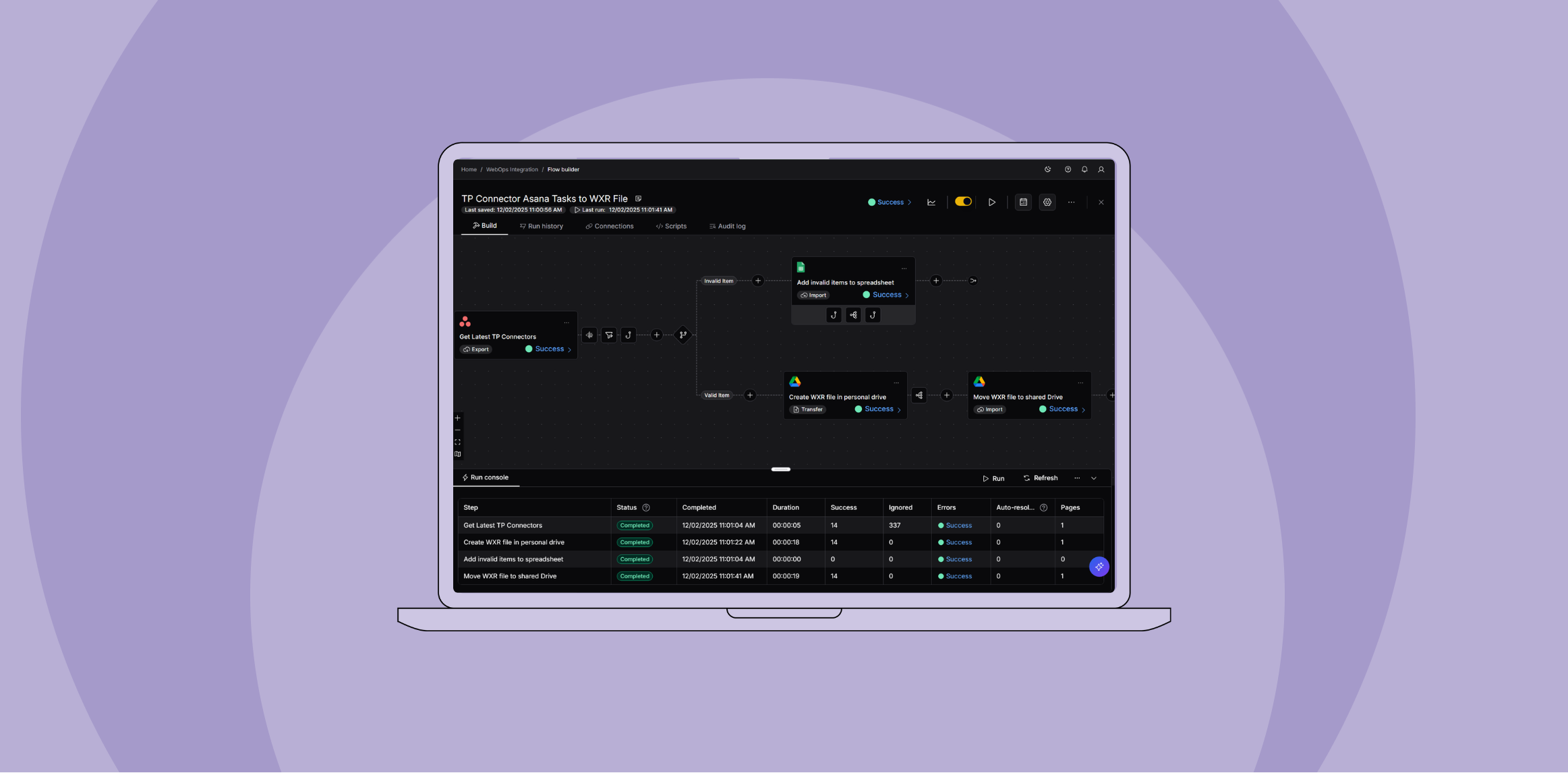
We’ll look at the technical details of the Asana to WordPress flow, the most fundamental part of this solution. This flow transforms web ops tasks in Asana into a dynamically built file that can be imported to WordPress to upload complete draft pages for all new TP connectors.

Flow overview
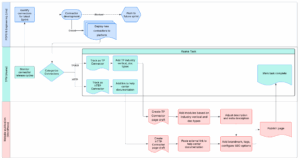
At a high level, here’s how the flow works:

  1. Export from Asana: Connector tasks (with custom fields like industry vertical and doc types) are pulled directly into the flow.
  2. Transformation: Nested fields are renamed and exposed for easier use, with defaults applied where data is missing.
  3. Filtering: Only unpublished connectors move forward; only items with no page need to be added to WordPress. Tasks with a “published” or “staged” status are excluded.
  4. Hook Logic: Script logic is embedded into a hook to generate WXR <item> tags, using business logic to determine the correct modules to use and dynamically replacing text in a generic WXR template.
  5. QA Branching: Tasks missing key details are routed to a shared QA spreadsheet for review.
  6. File Creation (Google Drive Import): Valid items are aggregated into a WXR XML file and stored in Google Drive. This file can then be uploaded to WordPress, creating individual WordPress pages for each task.

Let’s take a closer look at these features of the flow, starting with the initial Asana Export. This flow step will get data on all incoming TP connector tasks from Asana.

Asana export: Get latest TP connectors
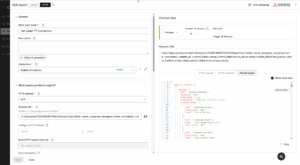
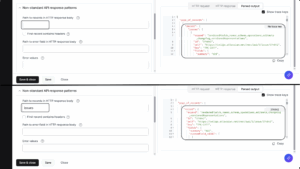
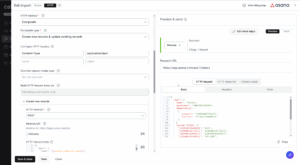
Using opt_fields, the flow retrieves both standard and custom fields for each connector task. 

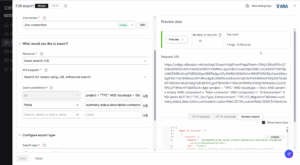
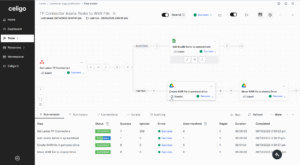
Look at the preview data in the bottom right. Records in integrator.io are grouped in pages that travel through the flow. Each record contains an array called “data”. The items in this “data” array are tasks from Asana that we will use to create Connectors. This seems unintuitive and difficult to navigate for our use case, where each record should be used to create a page.
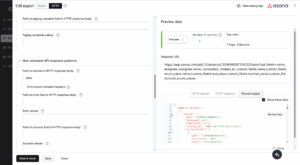
By setting the “Path to records in HTTP response body” to data, we can resolve this issue. Now, each Asana task becomes its own record in the flow, and each record can correspond to a single page.

Transformation

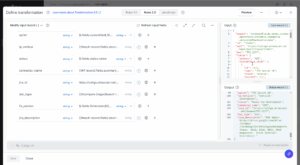
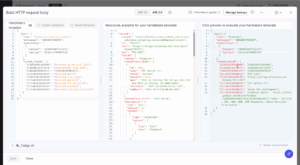
Handlebar helpers use business logic to rename fields and surface custom field values. By going to the settings of each mapping pair, we can set default values (e.g., “Unpublished” or “No Jira ID”) to ensure fields always have a dependable value, even when data is missing.

Output filter

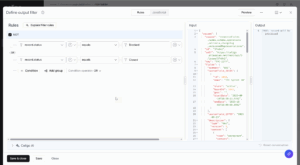
A filter ensures that only TP connector tasks with no previous publication status will be used. “Unpublished” is the default value given to the “pub_status” field in the transformation. Once a connector page is drafted, the TPM team gives it the “Staged” status in Asana and  “Published” when it is published to the Integration Marketplace. Blocking tasks with “Staged”,“Published”, or any other status ensures we only create WordPress pages for entirely new Connectors.

Hook
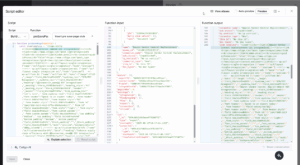
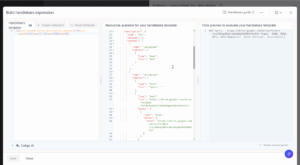
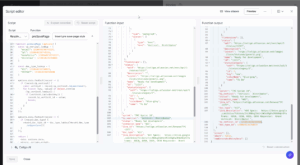
Using this hook, a template for an “item” in WXR syntax is manipulated. Using “@@” delimiters, we dynamically replace parts of this template to create a specialized page. The connector’s name, the EDI category from the TP vertical, the slug, and more are all added or derived using functions. 

Other functions in the script include deriving a “nicename” from the connector name and TP vertical (WordPress identifies things like categories using a unique ID-like string called a nicename) and choosing a semi-random background color from a set of acceptable colors to use for the background of the brandmark. This WordPress page excerpt is added to the record. We’ll add this excerpt to the final WXR file. First, we handle invalid pages with a branch.

Valid/invalid item branch: QA with a spreadsheet
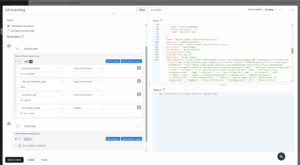
Before creating the final WXR file, the flow runs a QA check. A branch evaluates each connector task to ensure it has the required details. If any of the following are missing, the task is flagged as invalid:

  • Industry vertical – needed for proper categorization and module selection.
  • Connector type – must be marked “New” (not just an enhancement) to qualify.
  • Jira ID – enforces linkage back to the source of truth.
  • Doc types – required to configure the correct trading partner module (e.g., X12 or EDIFACT).

Any task missing one or more of these fields is routed to a shared QA spreadsheet, where the TPM team can quickly see what’s incomplete. Only valid tasks continue on to be added as <item> entries in the WXR file.

If the item is valid, it travels to the Valid Item branch, where Google Drive steps are used to construct the WXR file in a shared Drive.

Google Drive imports

The final step is to generate the WXR file that WordPress will use to create draft pages. Because files can’t be created directly in a shared Drive, the process works in two parts:

Creating the WXR file
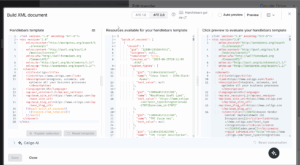
  • File type: The output is XML, since WXR is a WordPress-specific XML format. Using the .xml extension ensures compatibility.
  • Directory path: The file is first created in a folder in the flow owner’s personal Drive.
  • File name: A dynamic name is generated. Using handlebars, a timestamp is added to keep filenames unique and provide precise logging for re-runs.
  • XML document: The overall DOM-structure of the WXR file is hardcoded, but connector <item> tags are injected dynamically using handlebar helpers. Each Asana task becomes one <item> entry, ensuring that when the file is uploaded to WordPress, it produces complete draft pages for each connector.

A handlebar helper aggregates each record’s item tag into its proper place in the file. When we upload this file to WordPress, it will create complete draft pages for each TP connector.

This will result in a file created in our local Drive, so let’s move this to a shared folder for the entire team to access. 

Moving the file

At the end of the last step, we can use response mapping to grab the ID of the new file and add it to the flow. We’ll need this to specify which file needs to be moved.
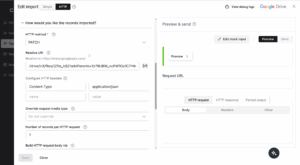
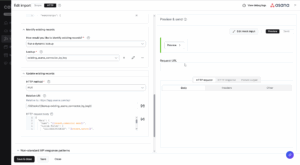
We’ll switch to HTTP configuration for this final step. A PATCH request moves the file from the local Drive to the team’s shared Drive folder. This requires specifying both the old and new parent folder IDs (visible in the folder’s Google Drive URL).

To move a file, the following relative URI:

/drive/v3/files/{{file_id}}?addParents={{new_folder_id}}&removeParents={{old_folder_id}}&supportsAllDrives=true

By automating file creation, naming, and movement, the flow replaces what used to be a manual, error-prone process. Every release cycle now produces a ready-to-import WXR file with full logging, governance, and team access—cutting connector publishing time from hours per page to minutes per batch.

Wrapping Up
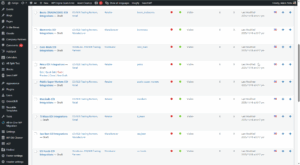
Once the WXR file is uploaded to WordPress by a member of the TPM team, all the new connectors will be published as drafts at once. These drafts will have every aspect of them automatically built out except for the brandmark. Once the TPM team adds these, we can publish the pages.

With the publication of all new pages to the integration marketplace, we close the connector publication process. This integration dramatically reduces the time the TPM team spends publishing large volumes of pages to the Integration Marketplace. By directly tying the data entered in webpages to Jira, the source of truth, the possibility of manual entry error is eliminated.

What was once a task that could consume a week of work or more is now a minor task that one member of the TPM team can complete in a day.

Let’s get started

Integrate, automate, and optimize every process.

Already a user? Log in now.

Integration insights

Expand your knowledge on all things integration and automation. Discover expert guidance, tips, and best practices with these resources.

6 min read

Marketplace automation: Creating WebOps tasks in Asana from Jira stories

Published Jan 22, 2026 Updated Feb 26, 2026
Adam Peña

Technical Product Marketing Associate

Adam Peña

Keeping work in sync across project management systems is a common challenge for growing teams. When development and execution live in different tools, even well-defined processes can break down. This leads to duplicate data entry, missed handoffs, and delays that compound as volume increases.

Automating the flow of work between systems like Jira and Asana helps teams reduce friction, improve visibility, and scale operations without adding manual overhead.

For Celigo’s Technical Product Marketing (TPM) team, this challenge became increasingly visible as the number of EDI-focused marketplace solutions grew.

A manual publishing process introduced operational risk and significant time cost, prompting a broader effort to examine the workflow, quantify its impact, and redesign it around automation.

Here is our step-by-step process to create end-to-end webpage publication automation:

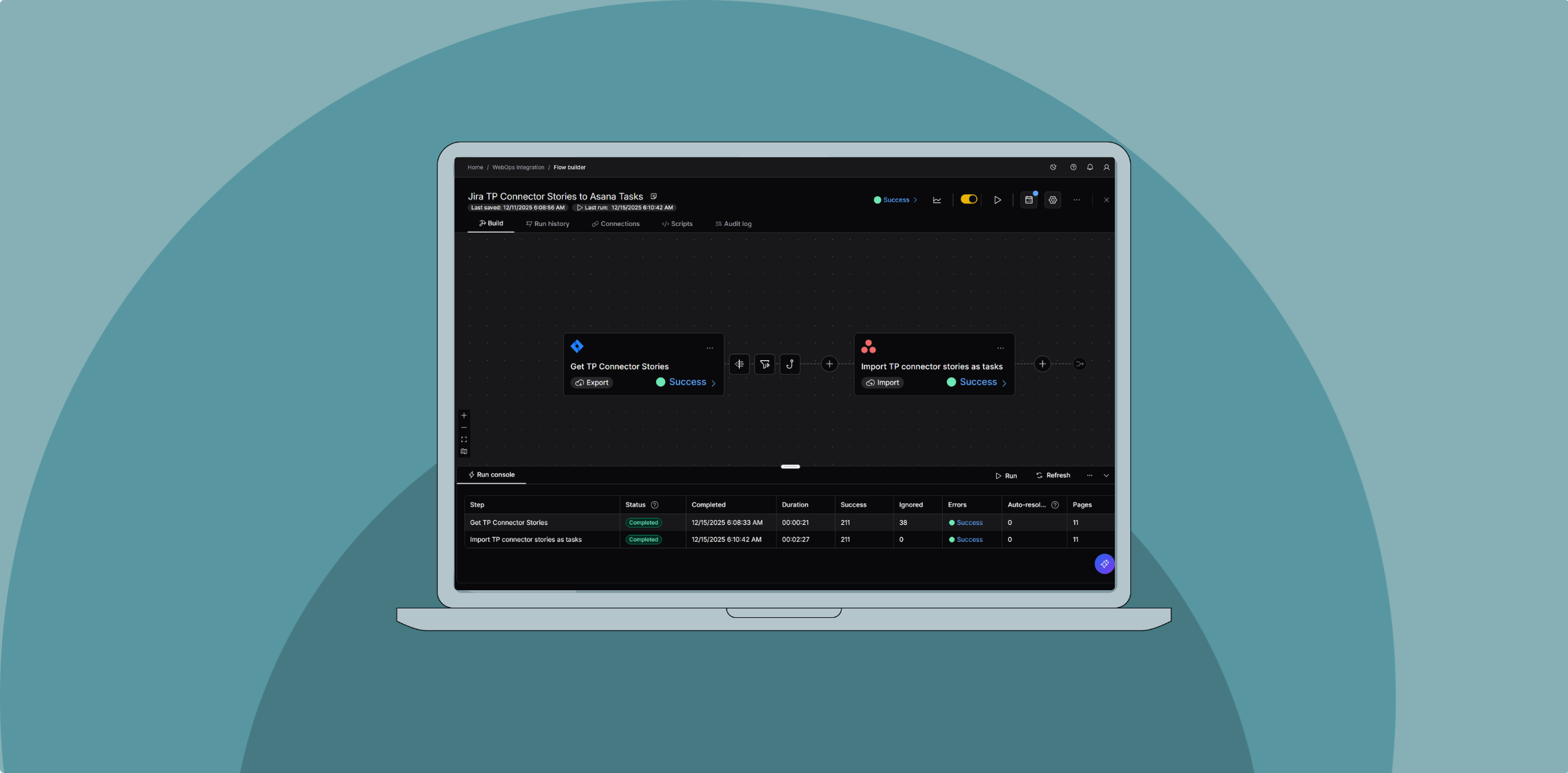
  1. Jira → Asana (this post): Automatically creating structured Asana tasks from Jira Connector Stories to keep development status and publication work in sync
  2. Asana → WordPress: Using those Asana tasks to dynamically generate WordPress drafts and publish connector pages to the website

The TPM team used Celigo’s intelligent automation platform to create new marketplace web pages for new trading partner connectors. This automation reduced the process time by over 99% and saves nearly 1,000 hours annually.

We’ll look closer at the first flow in this integration, establishing a reliable foundation by synchronizing Jira and Asana so downstream automation can operate consistently and at scale.

Stories are created in Jira by Product Operations and Engineering to track the development process for new Trading Partner (TP) connectors. These EDI-focused connectors are used with Celigo’s B2B automation solution, B2B Manager. The TPM team manages publication tasks in Asana, corresponding to newly released TP Connectors. 

Before automation, the team manually created and updated tasks based on Jira Stories—an error-prone, time-consuming step.

To replace and optimize this manual process, this flow will:

  • Pull new Connector Stories directly from Jira
  • Derive key details needed for webpage publication
  • Keep Asana tasks up-to-date as Jira issues evolve

Let’s explore the technical details of how this flow was built, starting with the Jira export.

Jira Export: Get TP connector stories

The flow begins with a Jira export step. Using the “Issue Search” API and a JQL query, the team filters for Connector Stories:

  • Criteria: TP connectors with a parent “Connector” object. Components and labels for Stories related to Connector enhancements or otherwise are excluded.
  • Fields: both standard and custom Jira fields are retrieved (customfield_{{id}} syntax).

By configuring the “Path to records” as issues, the flow unpacks Jira’s nested array so each Story travels as its own record—making downstream transformations much simpler.

Transformation

Next, a transformation step prepares fields for Asana:

  • Simple renames: e.g., Jira status is mapped into a straightforward status field.
  • Handlebar helpers + Regex: Extract verticals, doc types, and other key values from the Jira description according to known text patterns using the #regexSearch helper.
  • Concatenation: Multi-paragraph descriptions stored in arrays are looped and joined into a single text string for easier reference in Asana.

This ensures every record has the right fields exposed and formatted before moving on.

The TP vertical is entered into the Jira story’s description by POPS and engineering in a particular format. Since we know the format the text will follow, we can use handlebar helpers to search the description and match the format with Regex. Something similar is done to determine the industry vertical and EDI document type.

In the description field, each paragraph of the description is an object nested in an array called “content”. We can use handlebar helpers to loop through the text in this array and build the description as a single String corresponding to one field. We’ll map the description over to see more detail on the connector directly from Asana. 

Output Filter

To avoid clutter, the flow filters out any Story marked as Blocked or Closed. Only eligible, in-progress connectors proceed to task creation.

Hook

Asana requires internal IDs for custom fields (industry vertical, doc type, etc.). A hook string resolves values extracted from Jira with the correct Asana field IDs, then outputs them as new fields ready for import.

Asana Import: Import connector stories as tasks

With the Jira records ready, the flow pushes them into Asana using an upsert approach. This combines insert and update operations. To update, we compare an incoming Jira story to existing tasks. If a match is found, we update the matching task. If there is no match, a new task is created.

Create new tasks

Building the request body for new Asana tasks is straightforward, but it requires collecting several internal IDs.

These can be retrieved from URLs in Asana and simple GET requests:

  • Asana Project: Each task must belong to the correct Workspace and Project. Both IDs are visible in the URL when viewing the project in Asana.
  • Section ID: A GET request for project sections returns the internal IDs of each section. A dedicated section, labeled “Jira export”, is used to hold all new connector tasks created by the flow.
  • Custom Fields: Fields such as industry vertical, document types, and work status also require internal IDs. A GET request for optional task fields provides the full list of IDs, which are then mapped to the transformed values from Jira.

Once these IDs are in place, mapping values from earlier transformation and hook steps is simple. Handlebar expressions insert the correct per-record values into the request body, producing a valid task in Asana for every new Jira connector story.

Update existing tasks

To prevent duplicates, the flow uses a dynamic lookup to check whether an incoming Jira story already has a corresponding task in Asana.

The lookup checks Asana tasks for a custom field (the Jira Key) and compares them to the Jira issue key of the incoming record. The request uses a relative URI like:

/1.0/workspaces/10018867588589/tasks/search?custom_fields.{{asana_key_id}}.value={{incoming_record_jira_key}}

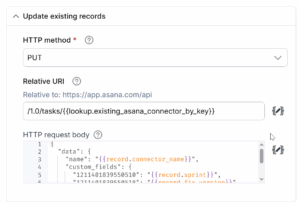
If a matching task is found, the flow avoids creating a duplicate and instead issues a PUT request to update fields that are subject to change (e.g., status or description). Unlike the “create” payload, the project and section don’t need to be respecified.

Instead of manually translating Jira Stories into tasks, the TPM team has every task automatically generated and updated from Asana using this flow.

Let’s get started

Integrate, automate, and optimize every process.

Already a user? Log in now.

Integration insights

Expand your knowledge on all things integration and automation. Discover expert guidance, tips, and best practices with these resources.
4 min read

Scaling Celigo’s Integration Marketplace with intelligent automation

Published Jan 22, 2026 Updated Feb 26, 2026
Adam Peña

Technical Product Marketing Associate

Adam Peña

SaaS companies operating marketplaces or app directories often find that product and engineering teams can scale delivery of new products, while the workflows for publishing webpage (marketplace) listings remain heavily manual.

Each release introduces a new set of marketplace products (or solutions) that must be translated from engineering systems into customer-facing marketplace entries.

In many organizations, this translation work is highly manual: a team member checks Jira (or a similar system) for new marketplace products, copies key details into a task management tool, assembles supporting assets from shared drives, and then recreates all that information in the CMS for each new listing.

At low volumes, this is manageable. As release cadence and connector volume increase, it leads to:

  • Significant time spent on repetitive, non-strategic work
  • Delays between “ready for release” and “visible in the marketplace”
  • Increased risk of inconsistency and error across listings

Celigo encountered this challenge as our EDI solution, B2B Manager, drove rapid growth in trading partner (TP) connectors.

Release cycles began to include 20–40 new connectors every two weeks, and the existing process for publishing to our Integration Marketplace could not scale without adding headcount.

Celigo’s Technical Product Marketing (TPM) team built an internal integration that transformed how we publish new connectors to the Integration Marketplace—cutting process time by over 99% and saving nearly 1,000 hours annually. 

By using Celigo’s intelligent automation platform to automate an end-to-end publishing process spanning Jira, Asana, Google Drive, and WordPress, we reduced a process that previously required more than 80 hours per monthly cycle to less than an hour, managed by a single team member.

At its core, this automation connects the systems where connector work is planned, tracked, and delivered—spanning Jira, Asana, Google Drive, and WordPress—to ensure that new connectors move from internal readiness to public availability quickly, consistently, and without manual handoffs.

Here, we’ll outline the business process and the problem, including the pain points of the manual publishing process and the cost of maintaining it at scale.

Here is our step-by-step process to create this automation:

  1. Jira → Asana: Automatically creating Asana web publication tasks for new TP connectors using Jira issues used by engineering to track connector development

  2. Asana → WordPress: Dynamically generating and publishing WordPress drafts using structured Asana task data

We’ll look at the technical details of the most fundamental flow in this solution, transforming web ops tasks in Asana into a dynamically built WXR file that can be imported to WordPress to upload complete draft pages for all new TP connectors.

The challenge

The need for a new type of connector emerged with the release of Celigo’s EDI integration solution, B2B Manager. Connector publication volume increased rapidly, with releases now including both new application connectors and new trading partner (TP) connectors.

As Celigo’s engineering team accelerated product delivery—releasing 20–40 new connectors every two weeks—the TPM team faced a scalability problem.

The process of turning Jira tickets into web-ready connector pages relied entirely on manual work:

  1. Check Jira daily for new connector tickets.
  2. Copy and paste various ticket details into Asana tasks, used to track web publication.
  3. Manually create and format web pages in WordPress.

This approach was reliable but unsustainable. The TPM and web teams spent ~80 hours per cycle on repetitive data entry, page creation, and QA—consuming bandwidth and increasing the risk of inconsistency across the marketplace.

The solution: Automating the publishing pipeline

The TPM team used Celigo’s platform to connect four systems—Jira, Asana, Google Drive, and WordPress—into a unified release pipeline.

The time spent on this process per month has been drastically reduced.

Flow 1: Jira → Asana

  • Jira tickets are automatically converted into Asana tasks with all details needed for publication.
  • Cycle time reduced from 20 hours to 2 minutes.

Flow 2: Asana → WordPress

  • Asana tasks are transformed into WordPress pages. By dynamically replacing text in a flow, a complete WXR (WordPress eXtended RSS) file is built. Uploading this file to WordPress will immediately create complete draft pages for all new connectors.
  • Cycle time reduced from 60 hours to 30 minutes.

Built-in QA and governance

Automated checks ensure pages are created only when tasks meet all criteria (industry vertical, connector type, document type). Incomplete records are routed to a shared QA spreadsheet, preventing errors before publication and immediately showing the TPM team what needs to be fixed.

The results

Business Process Manual Effort Automated Effort Time Saved
Jira → Asana 20 hours 2 minutes 99.83%
Asana → WordPress 60 hours 30 minutes 99.17%
  • 80+ hours saved per monthly cycle
  • 960 hours saved annually
  • $62,400 annual cost savings

Equivalent to half a full-time employee’s annual workload, without adding headcount.

Any organization managing high-volume publishing, from SaaS platforms to B2B marketplaces, faces similar scaling challenges and could use a similar approach to automate this process.

Let’s get started

Integrate, automate, and optimize every process.

Already a user? Log in now.

Integration insights

Expand your knowledge on all things integration and automation. Discover expert guidance, tips, and best practices with these resources.