Making Mapper and Transformations easier to use

We have a broad set of UX improvements across Mapper and Transformations to make the experience clearer, faster, and easier to work with.
These updates are focused on usability. They do not change the core mapping behavior users already rely on. Instead, they improve how users move through the experience, understand what they’re looking at, and complete mapping tasks with less friction.
Mapper 2.0 quick demo
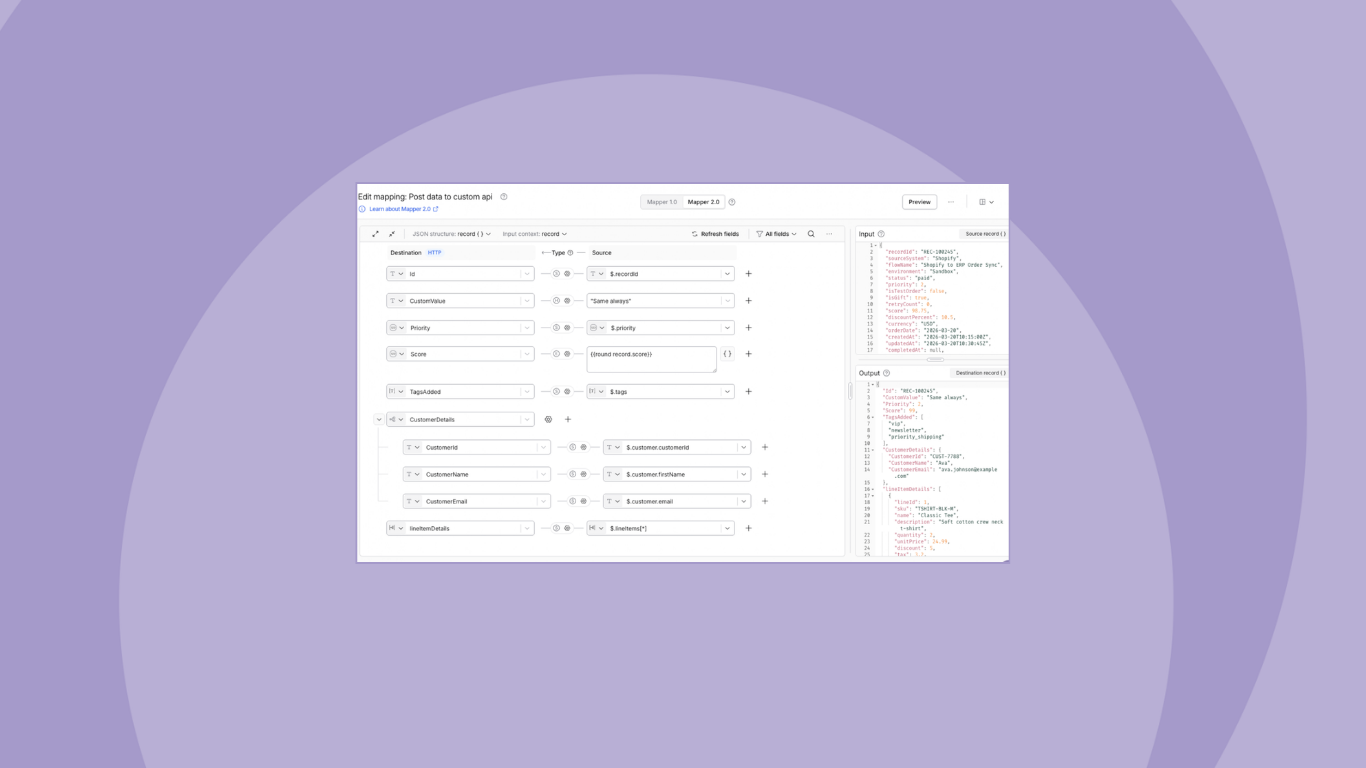
One of the biggest improvements is in the main mapping canvas. We’ve adjusted the field lengths for both source and destination so the mapper makes better use of the available space and reduces empty areas.
We’re also adding clear headers for Source, Destination, and Type, making each row easier to scan and understand.
We’re improving visual context as well. On the destination side, users will now see the application name or logo, reinforcing where the data is going. On the source side, that same treatment is intentionally not added, since there may be multiple sources involved. We’re also moving the mapping type and settings closer to the middle of the row, so it’s clearer that these configurations apply before the value is sent to the destination.
To reduce clutter, data types will now be shown as icons instead of labels. If a row includes a description, users will see an icon for it next to the settings icon. We’re also adding help text next to Type to help users quickly understand the available mapping types.
Better hierarchy, navigation, and search
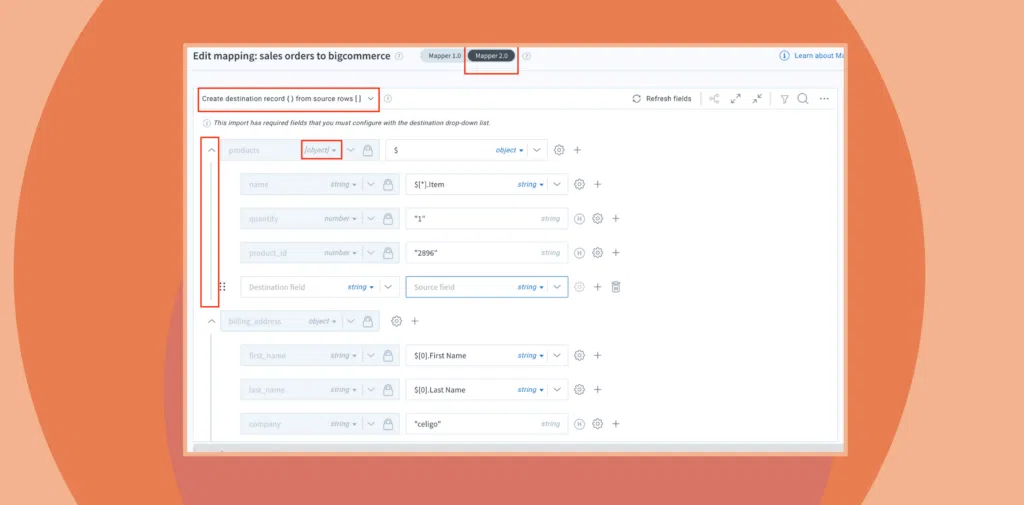
Hierarchy and navigation are also getting better. When mappings are configured, users will see a clearer object nesting structure, making parent-child relationships more evident. The source and destination field dropdowns will also reflect the same metadata hierarchy, with updated interaction states and clearer selection feedback. And when a dropdown is reopened, the currently selected field will already be in view, so users don’t need to scroll back to find it again.
Search in Mapper 2.0 is also being expanded. Today, search only works on destination fields. With this release, search will work across the full mapping row. When matches are found, the entire row is highlighted rather than just the destination field.
We’re also improving keyboard support so that CMD+F opens the mapper’s built-in search instead of the browser search. This does not apply to Body params.
More control when working with mappings
We’re also giving users more flexibility after mappings are created. Mappings can now be reordered using a drag handle on each row. If the selected row is an object or object array, its child fields will move along with it. We’re also moving Expand all and Collapse all to the beginning of the header area so they’re easier to access.
In the top section, we moved the automap inside actions and added a new option to remove only non-mandatory fields from already mapped fields. Existing values will continue to be shown the same way they are today.
A simpler settings experience
The mapping settings experience is also being simplified. Instead of opening in a more blocking, window-like screen, settings will now appear in a simpler pop-up with only the most important fields.
Standard remains the default field mapping type. If the selected type is date, the pop-up will dynamically show the date-related options. The fields shown will continue to adjust based on the selected mapping type, but there is no change to the underlying functional behavior.
As part of that change, we’re introducing date as a datatype. This replaces the current checkbox-based approach for marking a destination field as a date field. Existing dependent date behaviors will continue in the updated experience.
Clearer static lookups and Handlebars editing
For static lookup, we’re making the flow easier to understand. Users will now see an Add mapping button, and once mappings are configured, that button becomes Edit mappings(n), where n reflects the number of mapping rows added. We’re also removing Source field and Source data type from that section except if the destination field is array type, since those fields are now redundant.
We’re improving the experience for handlebar expressions too. Fields configured with handlebar expressions will now appear as text areas, and users can resize them vertically to see more content directly on screen. We’re also adding a dedicated icon so users can more easily open the AFE editor when needed.
Another key theme in this release is reducing interruption. Several tooltips that currently block access to fields and rows are being removed, including those on field values, datatype selection, settings, and source type. Tooltips will remain only where they continue to be useful, such as for adding a row or deleting a row.
We’re also reducing unnecessary confirmation pop-ups. Going forward, those pop-ups will only appear when users take actions that could affect nested content, such as deleting an object or object array that already has children, or changing the datatype of an existing row that already contains child fields. This removes extra friction in low-risk cases, such as newly added empty rows.
The delete experience itself is also being improved. The delete popover will better highlight the selected item in red, and if an object is selected, the full object will be highlighted so users can clearly understand what they are about to remove. The text within that popover is also being updated based on the latest design direction.
More consistent actions and generation options
We’re also updating mapping generation options to make them more consistent. The dropdown will now use the static label JSON structure, with options such as record {}, rows [], and for Transformations, Modify input record{} and Modify input row[]. Search and filter behavior in this area remains unchanged.
The overflow menu is being refreshed, too. Auto-map is moving under the overflow menu, and the available actions will now include Auto-populate destination fields, Auto-map destination fields, Remove all mappings, and Remove all non-mandatory fields where applicable. We’re also adding a dedicated option to delete only non-mandatory fields from mapped rows.
Users will be able to click out of mappings if the mapper takes too long to load, giving them more control in slower-loading scenarios.
Overall, these updates are designed to make Mapper and Transformations easier to read, navigate, and use, while keeping the core mapping capabilities familiar and consistent.
Integration insights
Expand your knowledge on all things integration and automation. Discover expert guidance, tips, and best practices with these resources.